
What's New - September 2026
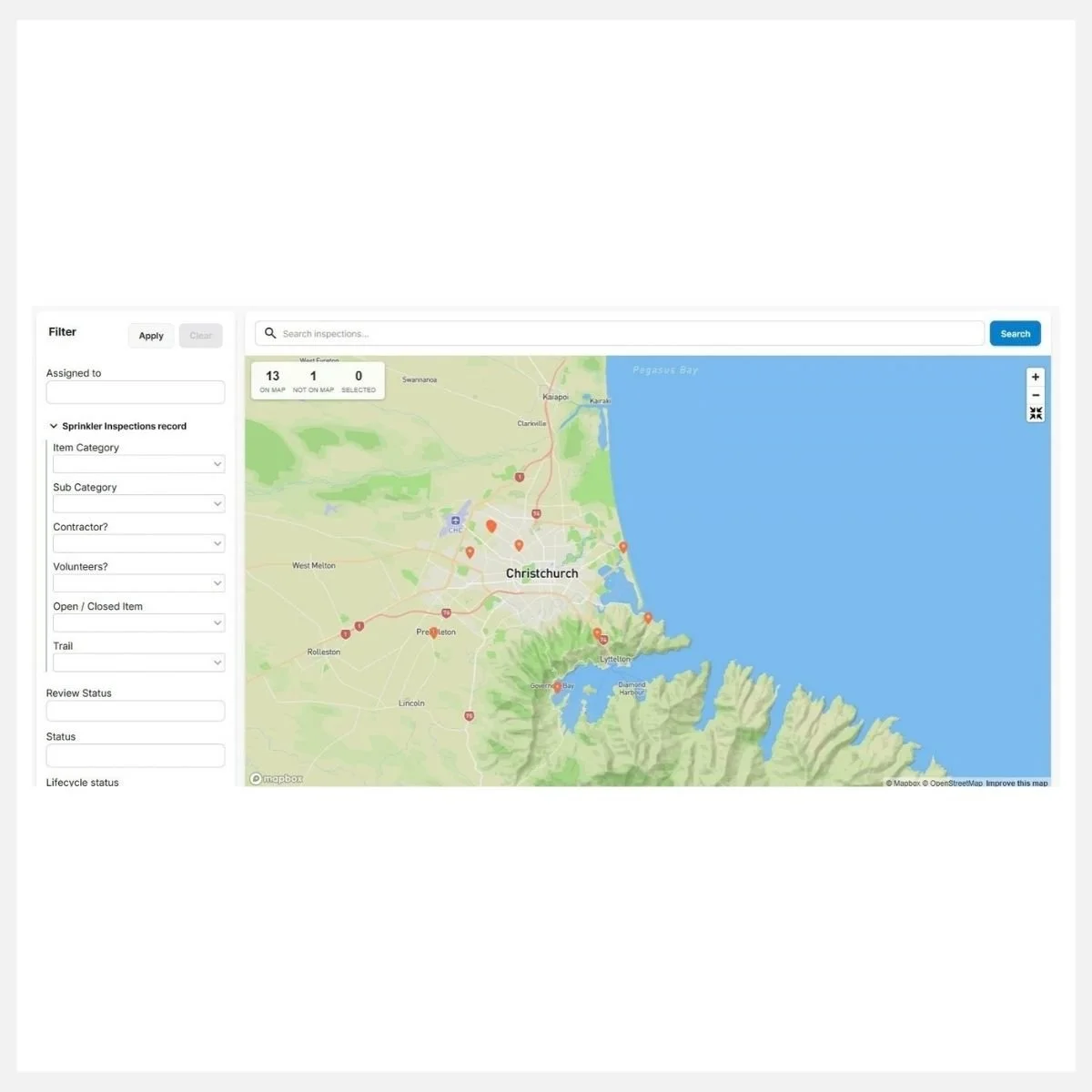
Map View for Work Packages: See All Items at a Glance
✔ All Hub Users
Map View on the hub is here. Ever wanted a simple, visual map showing where all your inspections in a work package are? Now you can! Map View lets you see every job in a work package right on the map, making it a breeze to assign nearby areas to your team. If you do not have this feature yet and would like to use it, please reach out and we will add the GPS field to your template.
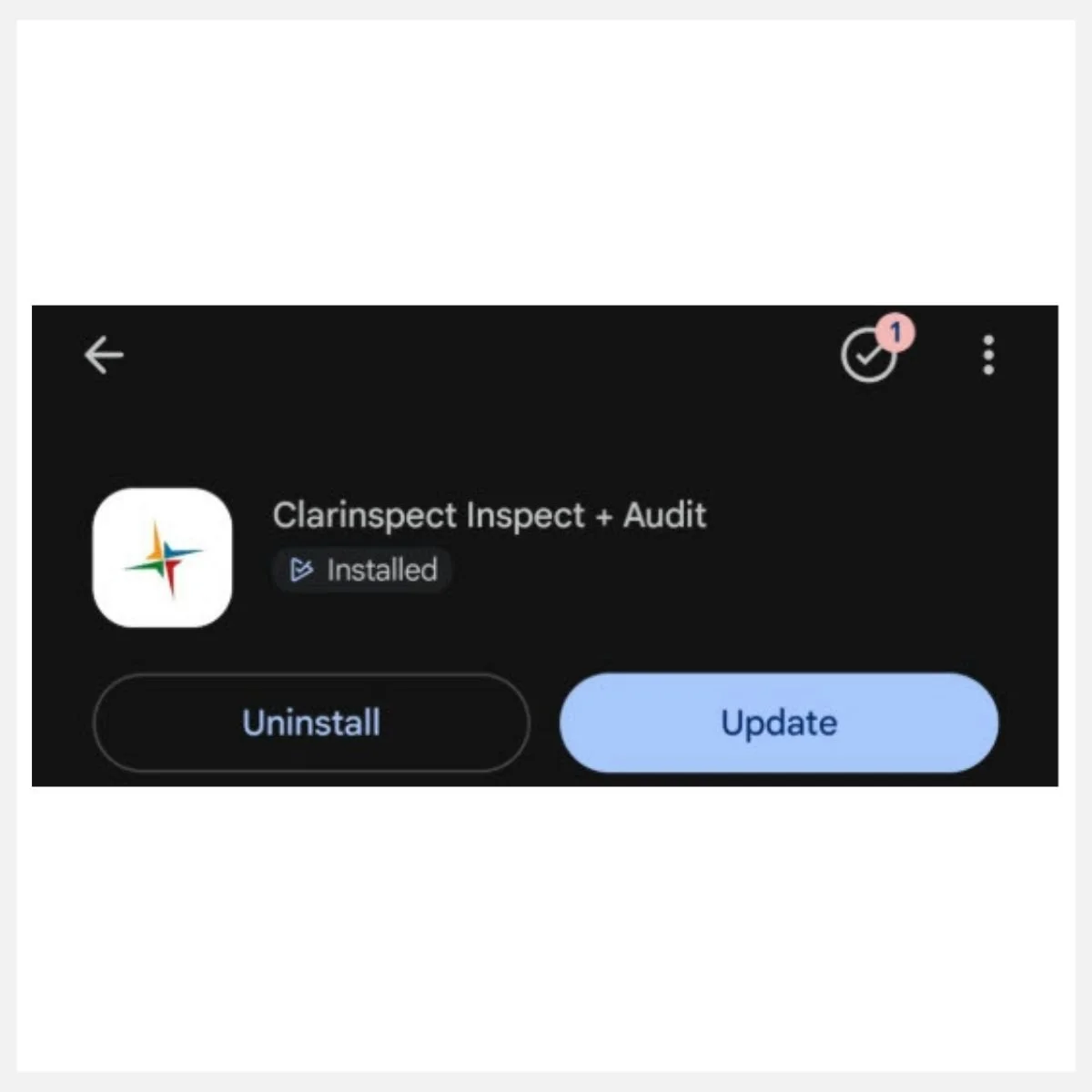
Update your App regularly - Please remind the team
✔ All App Users
We roll out fresh app updates every single month to squash bugs and make everything run super smooth. While auto-updates usually do the trick, network hiccups can sometimes stop them.
Here’s a quick task for your next toolbox talk: remind your team to jump into the App Store or Google Play Store to double-check that they have the latest update.
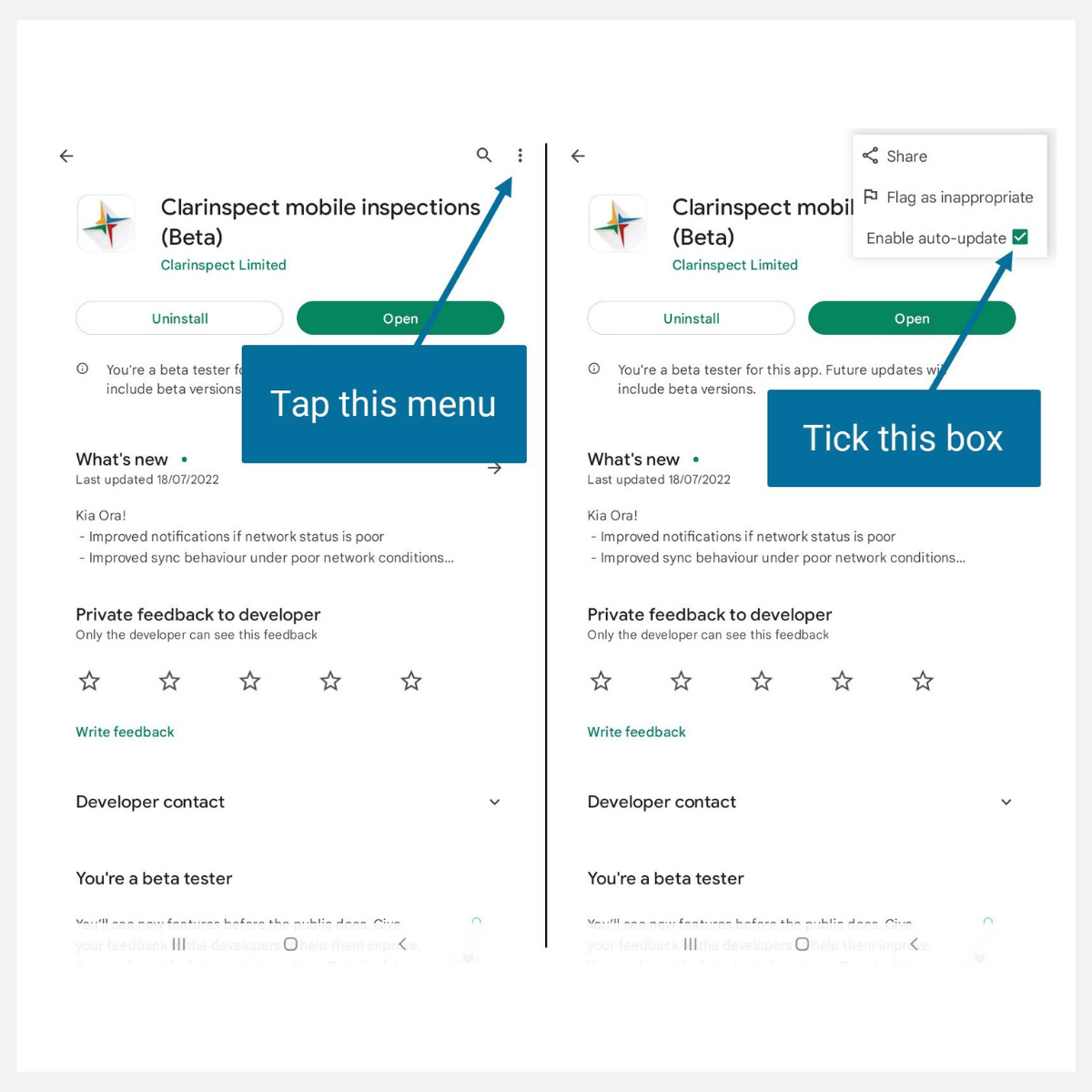
When everyone updates, everything runs without a hitch and you won't waste time running into bugs we've already fixed! Easy steps
1. Go to the app store or play store
2. Check if it says “Update Available” then Update.
3. If not, you are all good.
While you are there, make sure ENABLE AUTO UPDATE is on. As I said, if conditions are not perfect, it might miss an update, so it is best to get the team to check regularly.
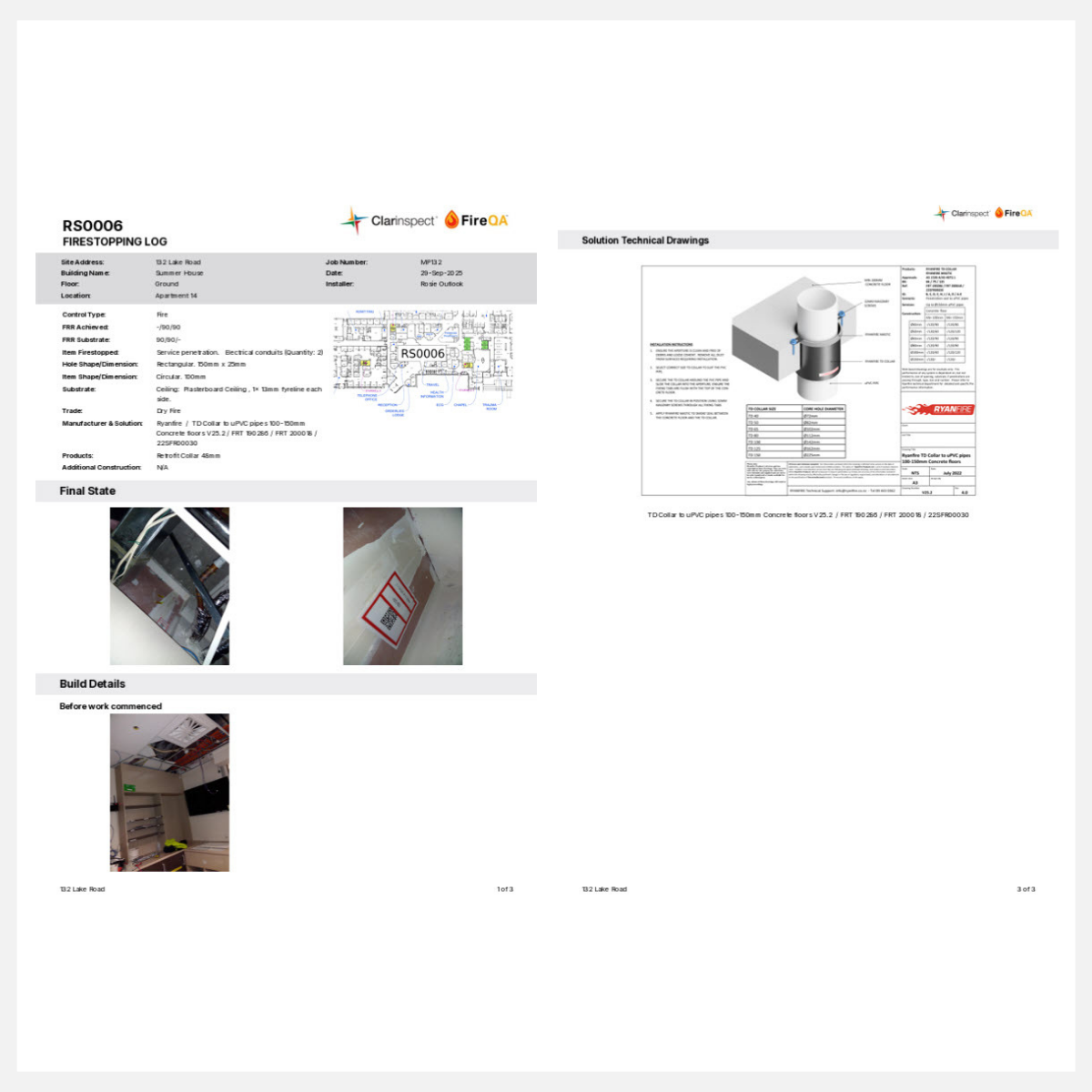
Updated and Improved As-Built Reports for Firestopping
✔ All Hub Users
If you're still using an older individual report style for your passive fire installs, good news - we've revamped it. The new layout makes your firestopped items look cleaner, clearer, and much easier to read. It also is more compact, so it reduces the number of pages when they are compiled, which the councils, builders, strata and fire engineers love.
We'll be rolling this update out across systems and will be in touch when it's your team's turn.
Got a project coming up soon and want the new layout sooner? Reach out to your project lead and we'll move you to the front of the queue.

Are Your Teams Picking the Wrong Item from the List?
Want your crew moving faster on site? Give them a SmartFill with a useful name such as 'Hand basin waste water. But if they still need to choose from a list, these two quick fixes will help:
1. Trim the list
Is your list full of stuff not used on this project? Cut it down to what your team actually uses. It takes less than 5 minutes, and a few minutes of hub admin now saves your crew time on every job.
2. Reorder the list
Put the most-used items at the top. Tap the three lines to the left of a list item and drag it up. Done. For more guidance on your lists, please go to this document EDITABLE LISTS
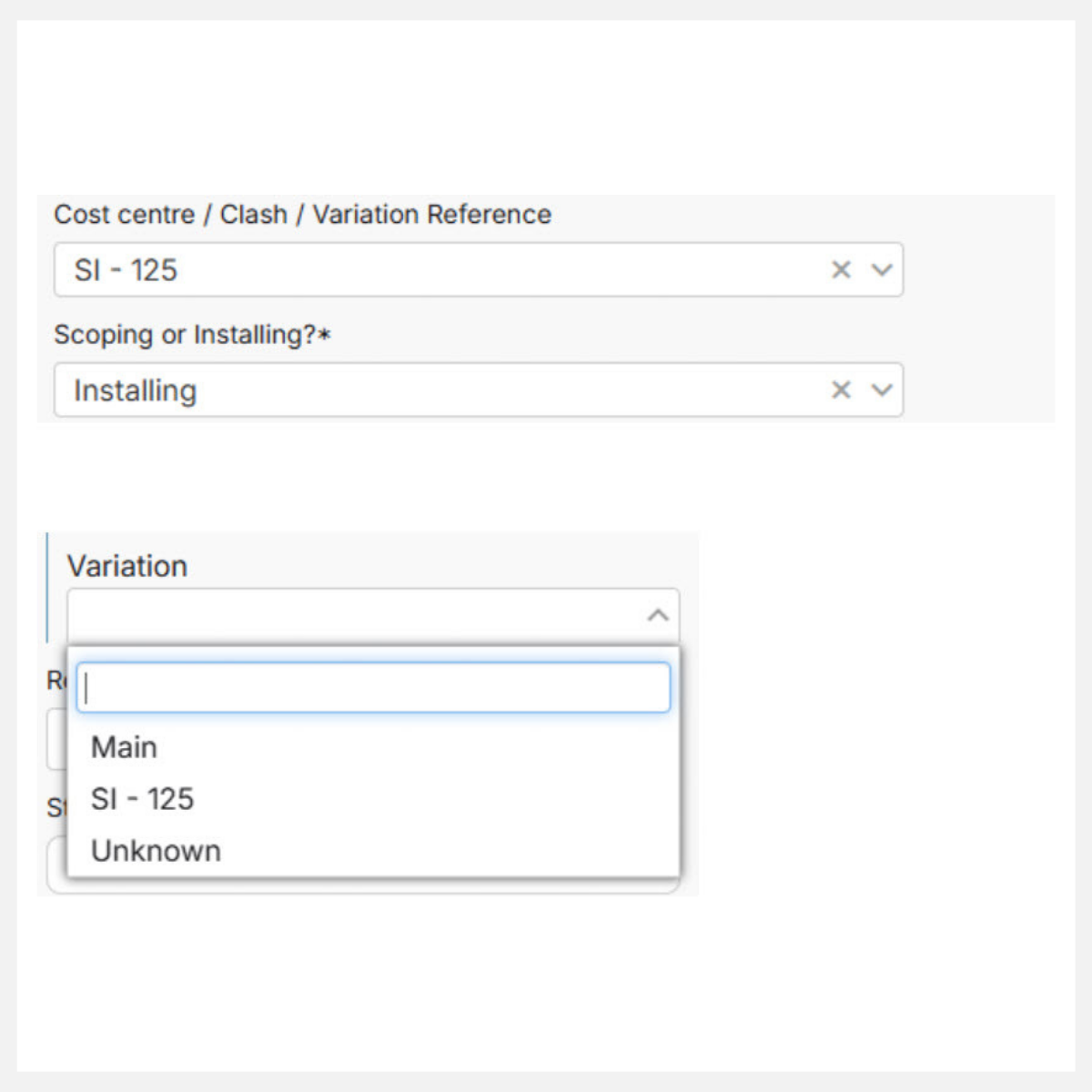
Got a new Site Instruction (Variation) you need to report by
✔ All Firestopping teams
If you're a Firestopping team, variations and Site Instructions are part of your work flow.
To support this, you can edit your “Cost centre / Clash / Variation Reference “ list. Just add the new Site Instruction in, along with its code.
That's it — now you can filter your summary reports to show just that Site Instruction. No digging through everything else to find what you need. From there, it's easy: new SI comes in → add it to the list for that Work Package → filter by it whenever you need to.
Don't see this field in your app? Give us a shout and we'll get it added for you. Less admin, faster reporting, faster payment. 💰
Faster Gauge connection in Coatings QA
✔ All Bluetooth Elcometer/Defelsko Users
We have done some fixing in the back end that makes the Android device, such as your Samsung phone, and the Elcometer/Defelsko connect much smoother via the bluetooth connection. Any questions or need a hand just give us a call.
Top Tips and Tricks

In the App - Find mandatory fields fast - less scrolling!
Out in the field, some teams just need the mandatory fields filled in. So let's make them easy to spot.
Tap a button and mandatory fields get a red mark. Simple as that. Less hunting, more doing.
ANDROID
1. Tap the three dots, top right
2. Tap VALIDATE
3. Red marks appear on mandatory fields 🔴

iOS Apple
Tap the exclamation mark
Red marks appear on mandatory fields 🔴
Bonus: check the ERRORS list — tap a field name and it jumps you straight there. No scrolling needed.
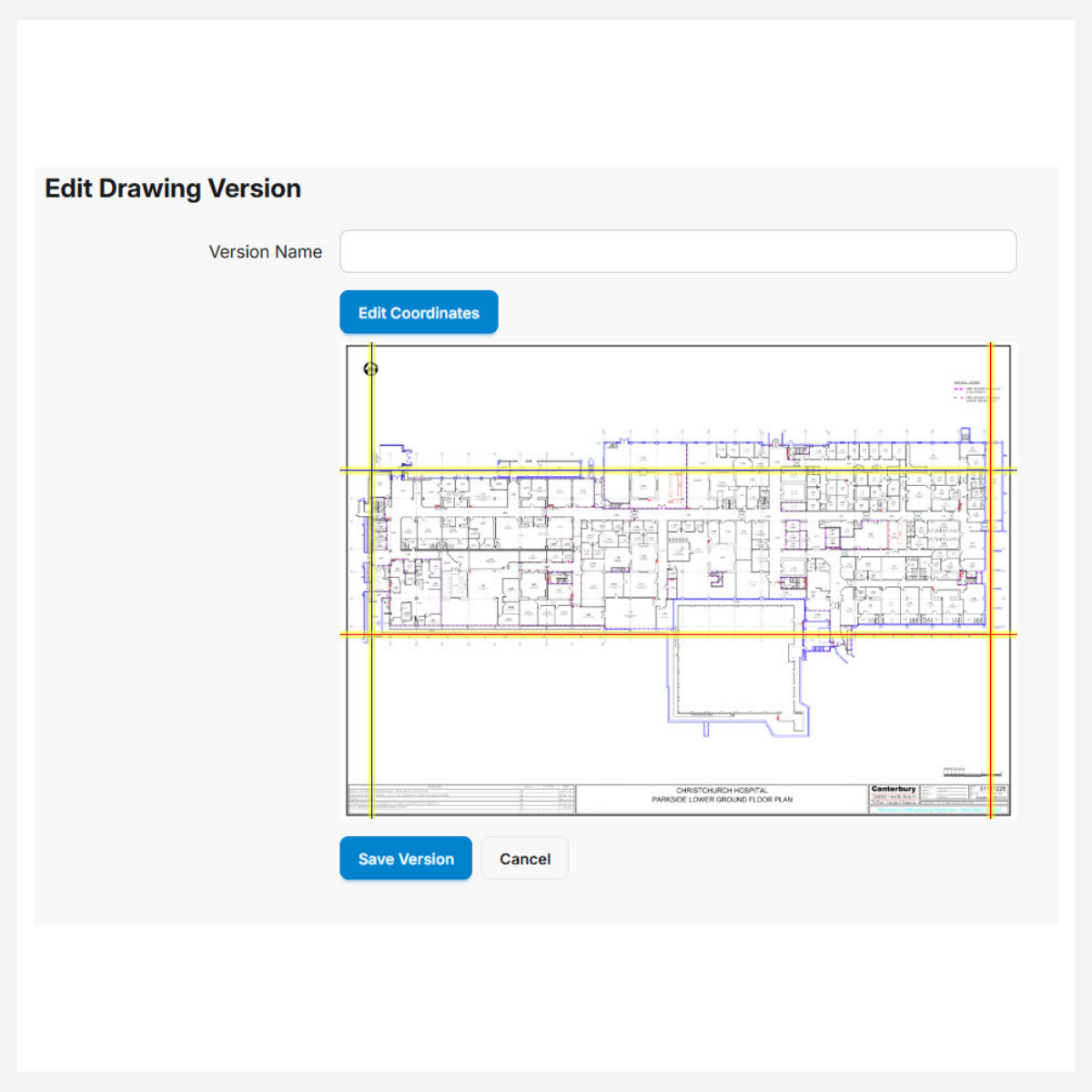
New drawing version with 100 pins already on it? No stress
✔ All Drawing Sets Users
Got a new version of a drawing with already 100 pins on it? Relax, we can move those pins for you.
Upload the new drawing set, hit EDIT VERSION, then tap EDIT COORDINATES to line things up. Boom — all your pins auto-magically jump to the right spot. Zero re-pinning, zero headache.

Did You Know you can Scan QR Codes Right in the App!
✔ All users
Working on a site that uses QR codes for items or penetrations? We can add a quick scanner button directly to your app screen to pop reference numbers right into your fields—no typing, no typos!
Interested in setting up QR scanning or adding QR codes to your stickers? Get in touch with our team today!
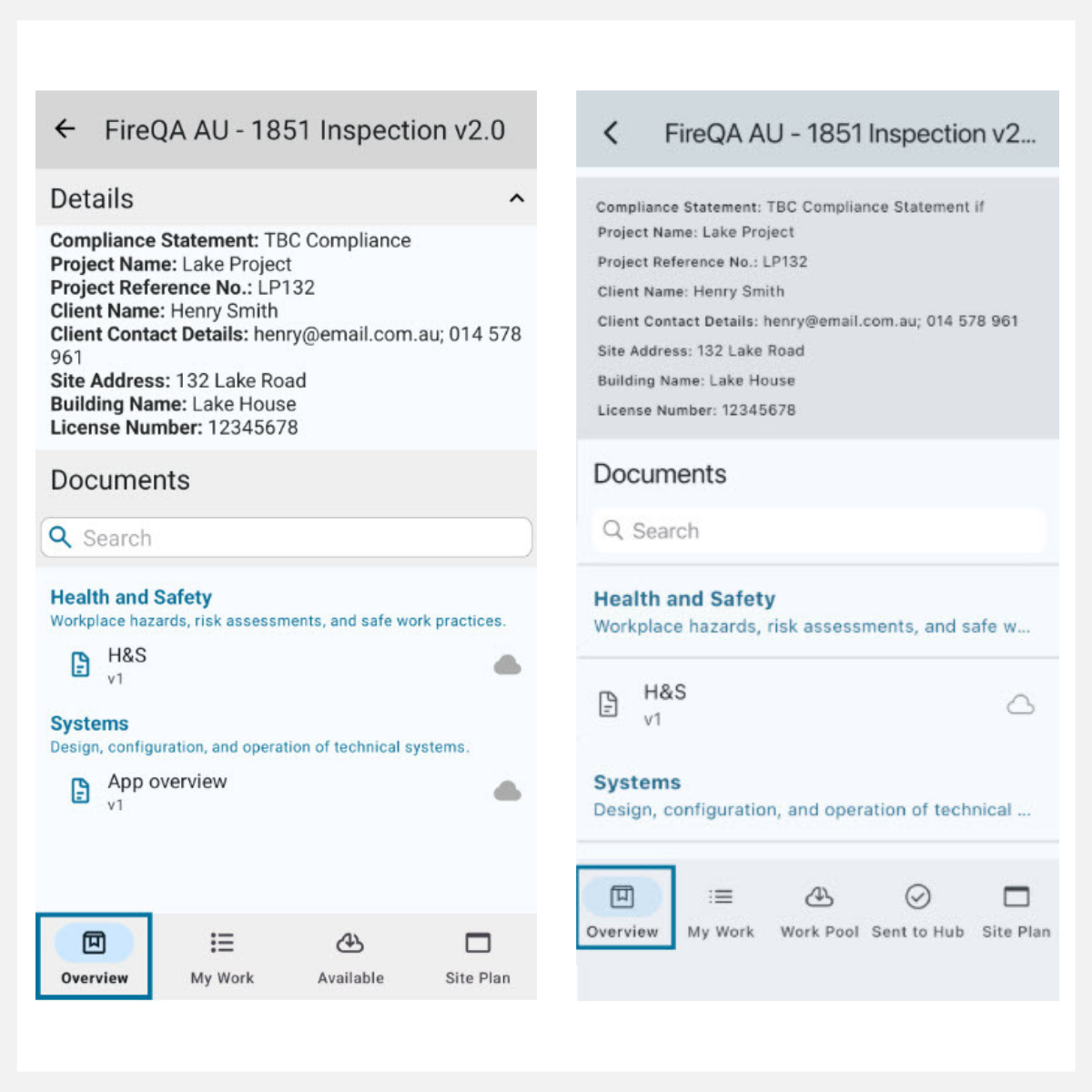
Handy New Overview Tab in the App
✔ All App Users
We have a new tab in the app where all your site details and documents live in one spot. Site manager's phone number, key contacts, plus Documents: a place to send out links and PDFs to the team on site, so everyone's working off the same info without digging through group chats or email.
Check out this document for guidance - Overview In The App

Spot Work Packages with Items Pending Review Faster with Orange Badges
✔ Review System Users
Spotting work that needs a check is now super easy. Work Packages that have inspections awaiting review now highlight with a bright orange badge showing the number of items ready for you. You can see instantly where your attention is needed most!
Want to dive deeper into how review badges work? Read our simple guide here:
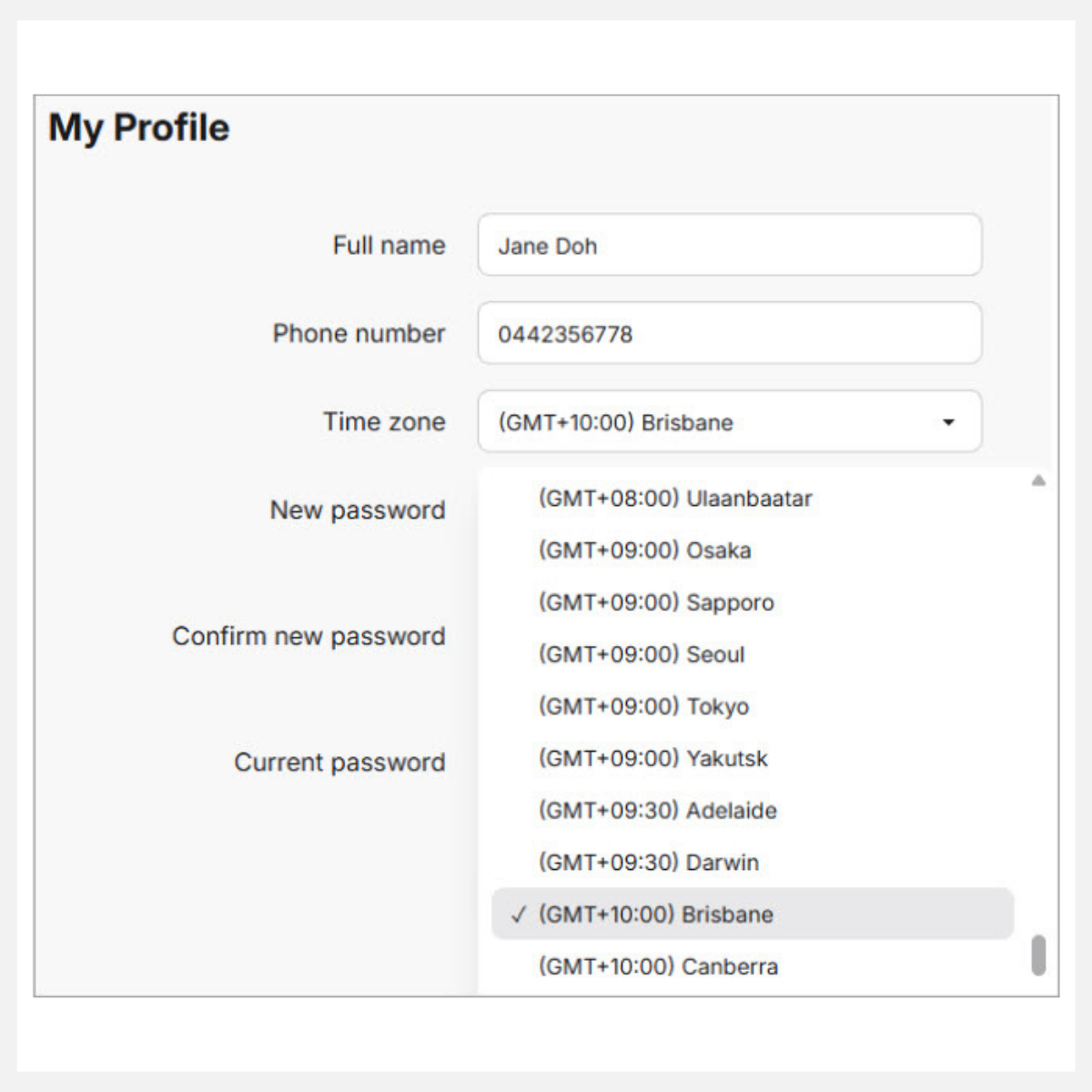
Check Your Time Zone Settings
Here’s a fast tip to avoid mismatched inspection times in reports by different people: make sure everyone’s profile is set to the right time zone!
If the time zone is wrong, your spray logs and reports might display the wrong time, leading to unnecessary confusion on site. Note that this only affects dates and times in reports.
How to fix it in 10 seconds: Each team member needs to go to their profile on the hub, click your name at the bottom left of the Hub to open Your Profile, pick your correct time zone, and hit save!
Thanks so much for reading and staying up to date!
If you have any cool ideas or an update you'd love to see soon, feel free to reach out.
We really value your input and guidance - it’s all part of the team effort.
If you need more info on anything you can always search our knowledge base which is in the Support Portal tab on the hub.
If you missed the last Whats New, have a read here Whats New July 2026
Best regards,
The Clarinspect team