
What's New - November 2026
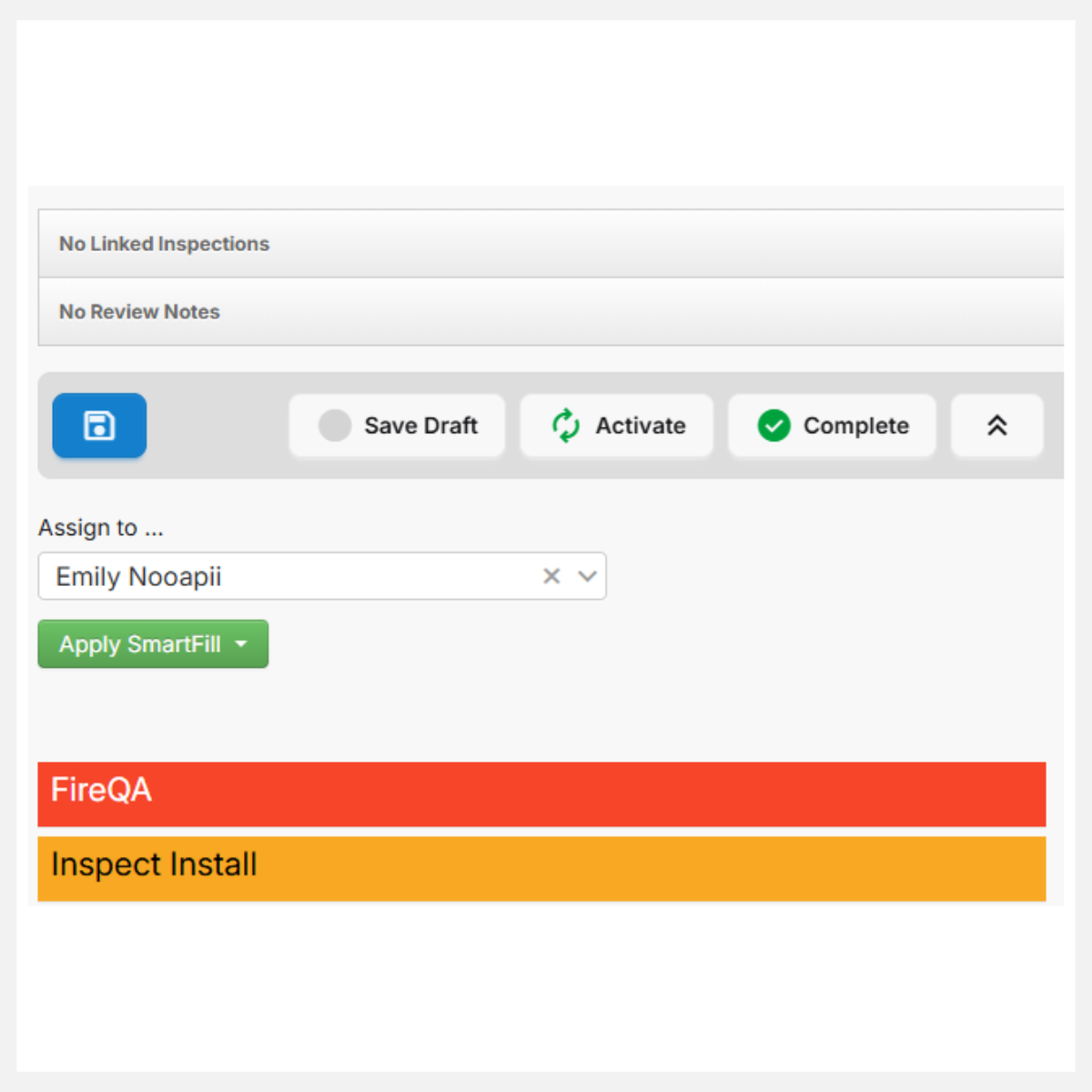
Save and Complete Inspections faster on the Hub
✔ All Hub Users
Saving and completing inspections just got easier
We’ve made it quicker to save, activate and complete your inspections. Two things have changed.
1. The save panel is always on screen. Got to the bottom of a long form? Your buttons are right there. Finish editing and tap COMPLETE. No scrolling back up.
2. No more hunting for your option. You used to tap the arrow, then pick what you wanted. Now your options are shown up front, so it’s one less tap.
Default forms
✔ All Hub Users
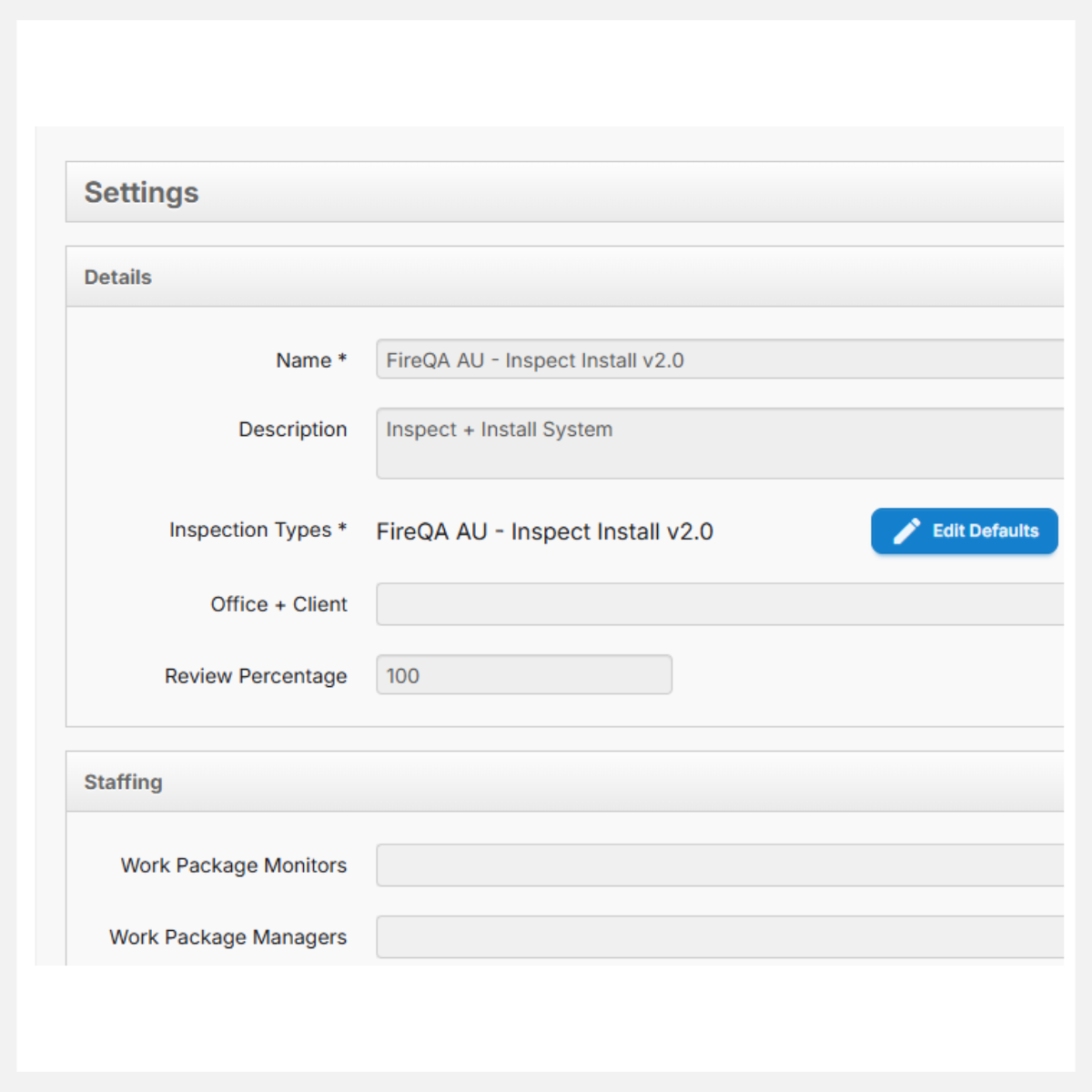
Tired of filling in the same select fields on every inspection? Now you can pre-fill a form so your defaults are already set when your team opens it. Set it up once and save time on every job.
Different ways this can help…
If this is a SCOPE project for Passive Fire Install, then choose SCOPE on the default and it will be filled in for all of the forms. Are all surveys in this work package - REFURBISHMENT? Then choose it once on the inspection default and you are good to go. This will be available for the selects and text fields on the main form of an inspection and is going to be a massive game changer. You can edit the defaults on the SETTING tab next to inspection types.
Site plan PDFs now keep the drawing name
✔ All Site Plans users on the Hub
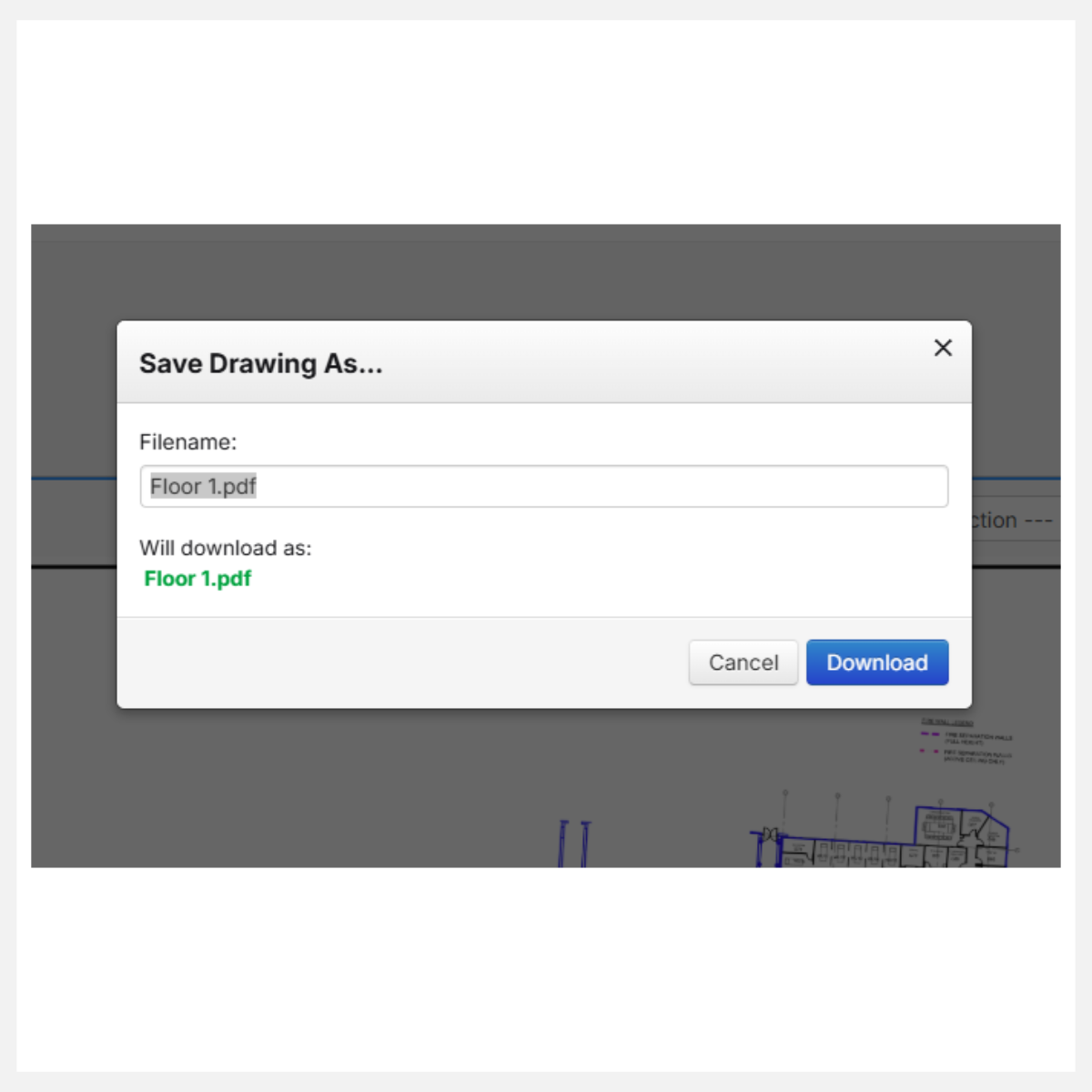
When you download a PDF from the Site Plans tab on the hub, the file name now defaults to the name of the drawing. No more renaming it after you download it.
Want a different name? No problem. You can still change it to whatever suits you.
Support portal is there to help 24/7
✔ All Users
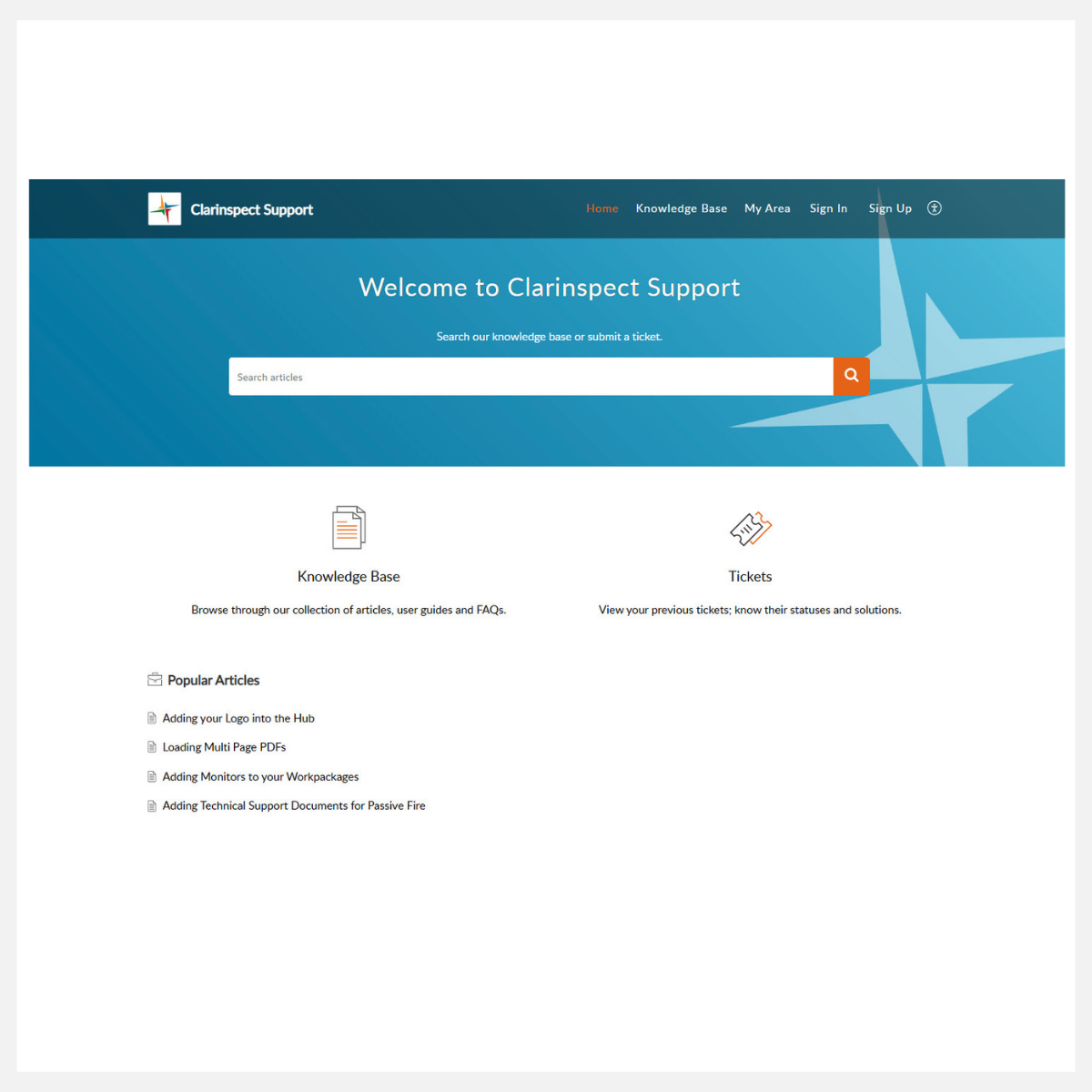
Need a hand? Log your ticket in the Support Portal, any time that suits you. You know your problem best. Give us the details up front and we can send it straight to the right person:
What you were doing, What you expected to happen, A screenshot, if you have one, What device the person is using, A phone number of the person we may need to talk to later after our initial investigation.
When you call, we have to write it all down and ask lots of questions first. Logging it yourself skips that, so you get help faster. No back-and-forth. No waiting for a call back. Just faster help. You’ll find the Support Portal tab on the hub. While you’re there, check out the searchable knowledge base for quick answers and step-by-step guides. Support portal
Top Tips and Tricks
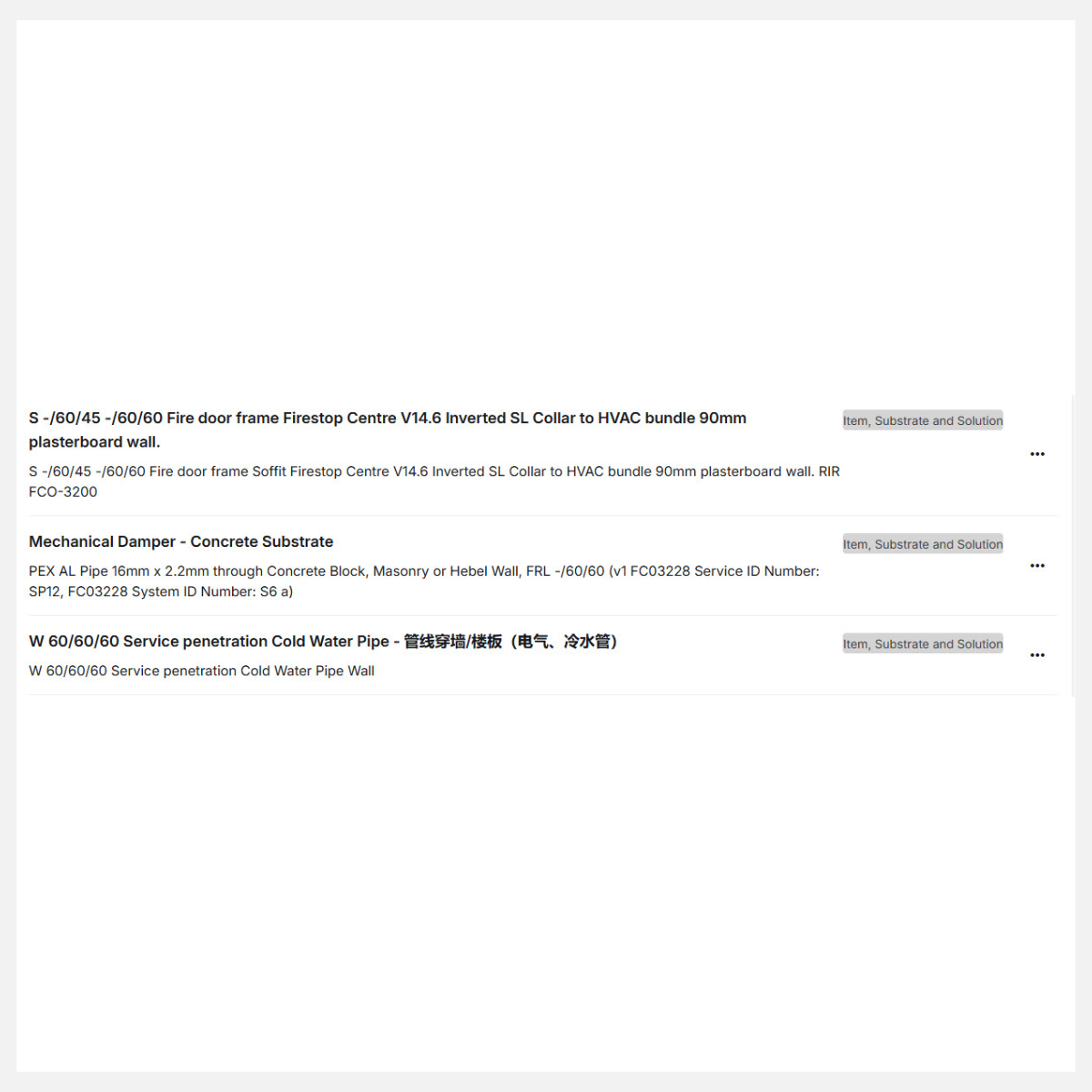
SmartFills now speak your team’s language
✔ All Users
Got a crew who work in a different language?
SmartFill labels and descriptions can be set up in a different language ( Mandarin? Tagalog?), so everyone can pick items and fill in forms in the language they’re most comfortable with. The form data will still be in English.
Clearer for the team on site, fewer mix-ups, and less time spent translating.
Want it set up for your team? It’s easy, just paste the text into the SmartFill Label or Description. These are not part of the record, but are for the team to search up and choose the SmartFill they need in the app.
Having issues in the app?
Don’t log out, reach out!
✔ All App Users
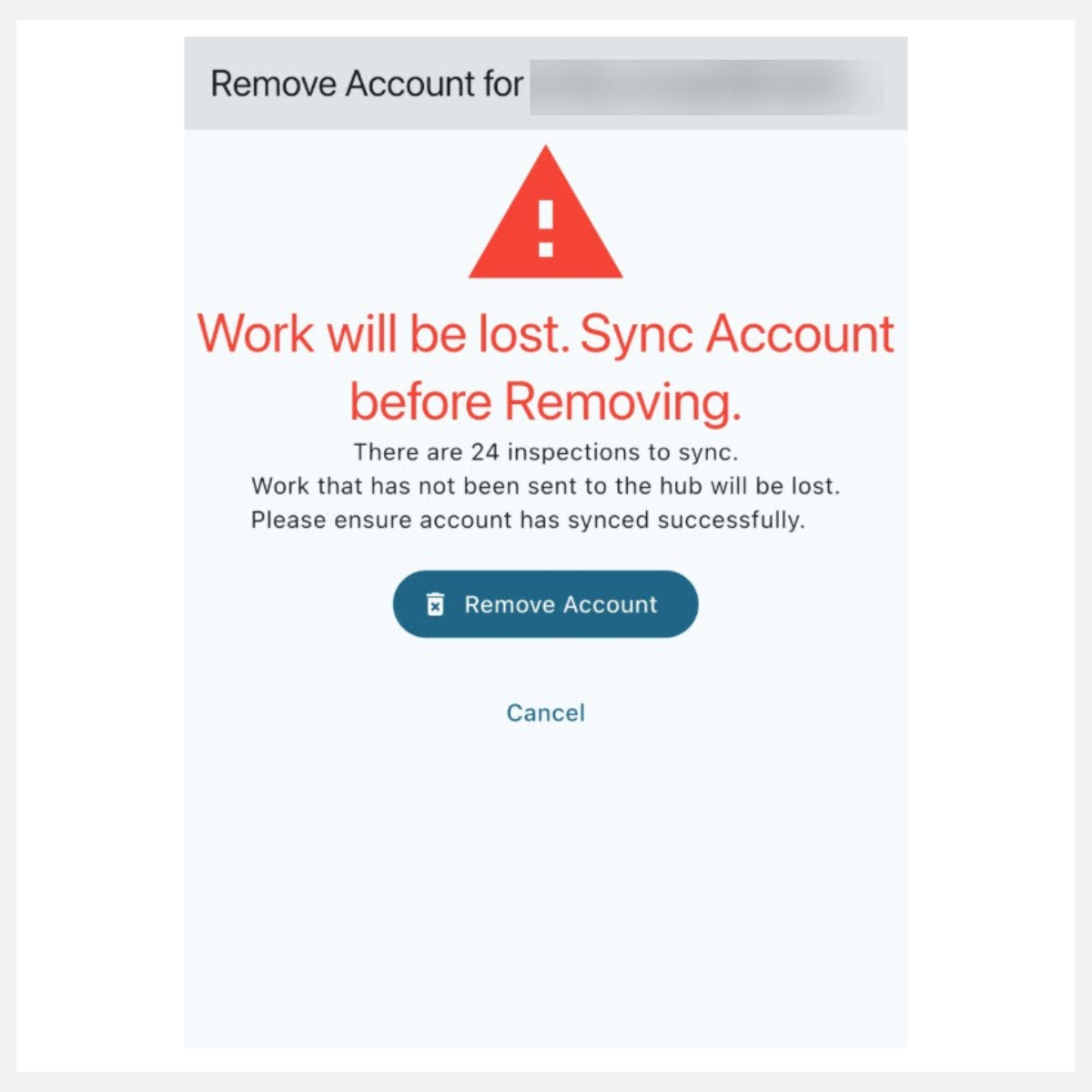
If something’s not working, such as a stuck photo or a sync that won’t finish, please don’t log out of the app. Logging out can wipe the very errors we need to see, which makes it harder for us to find out what went wrong and get it fixed.
Instead, head to the Support Portal and let us know what’s happening.
We want to help protect your work, so do not log out or uninstall the app when something is wrong.
Coming soon
Improved SAVE on the hub
✔ All Hub Users
Your unsaved edits on an inspection now stay for 65 hours. We’ve stretched how long we hold your unsaved edits to 65 hours. Closed a tab on Friday night and forgot to hit SAVE? Your work will still be there on Monday morning.
How to get your work back: Open the page. It will look like your work has gone. Don’t panic. Tap EDIT on that inspection.
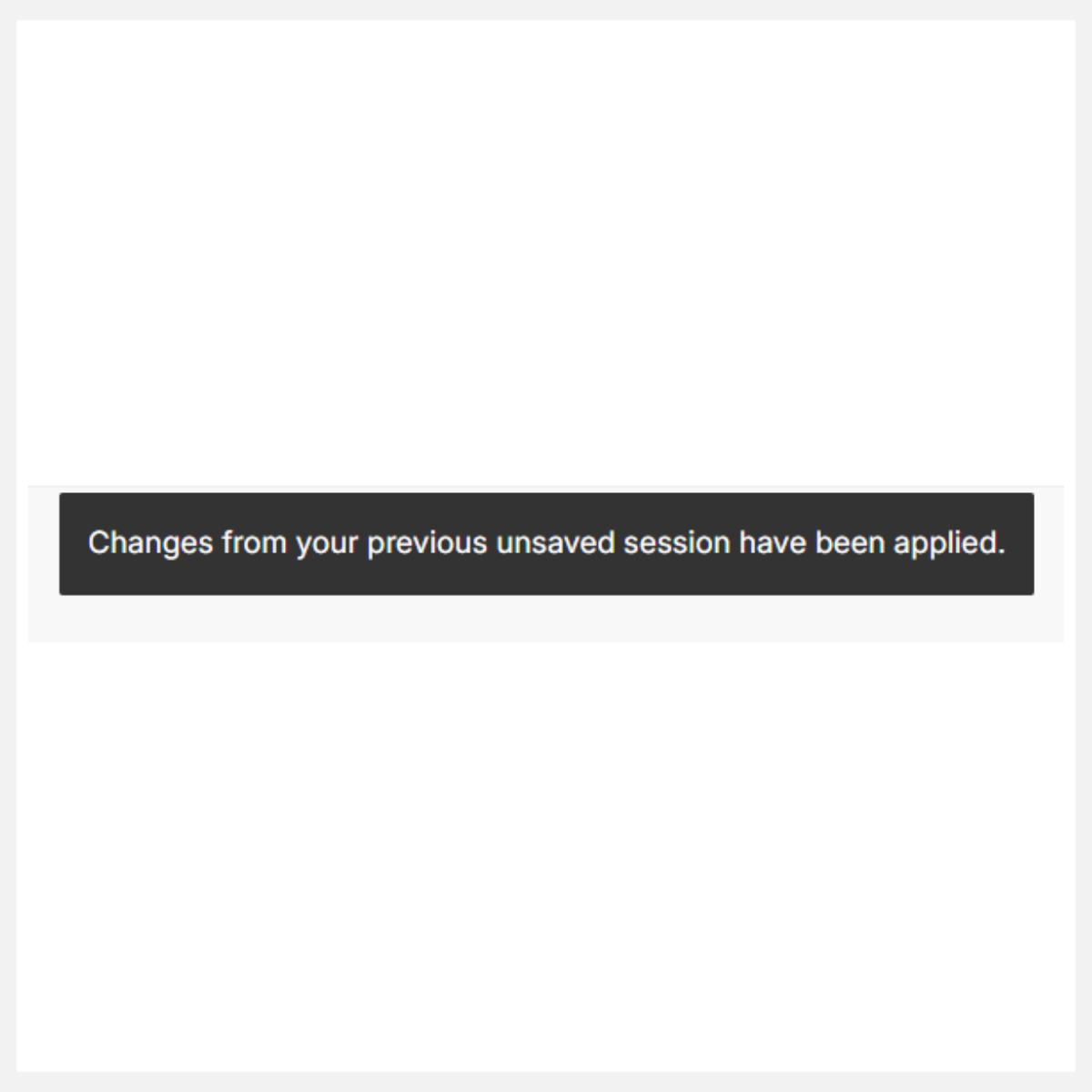
If it was a brand new inspection that you closed the tab by mistake - hit the CREATE INSPECTION in the same work package and it will be there. You’ll see a message like the one on the left and your unsaved changes will appear. Good to know: after 65 hours, unsaved changes are gone for good. Heading away for a couple of weeks? Hit SAVE first!
Clear data when hidden in app
✔ All App Users
We’ve got an update on the way to keep your data cleaner and your reports and registers more accurate.
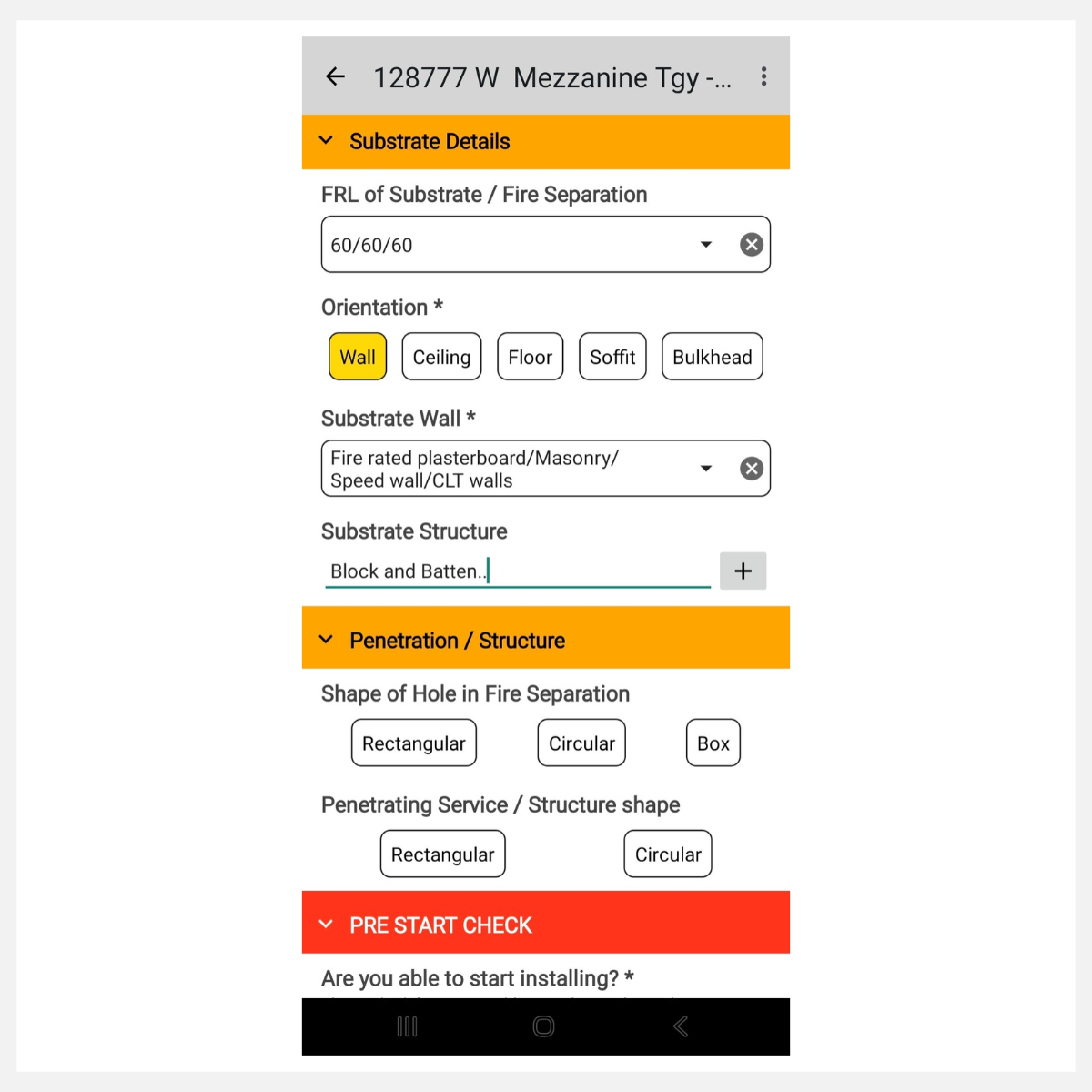
The problem: When you change a field that shows or hides another field, mistakes were slipping through. Say you switch the substrate from floor to ceiling. The floor description is still sitting in the data. You can’t see it, but it still turns up in Excel and other reports. It also caused headaches when teams used the copy function.
The fix: Now, when you change a selection and a field gets hidden, the data stays put until you hit Complete. Then it’s cleared out. Hide a field by accident while scrolling? No stress. Your data is still there until you complete.
In case you missed these important notes last time…
Terms & Conditions Updates
We have updated our Terms and Conditions which can be found here: TERMS & CONDITIONS.
In a nutshell the changes are to section 2.2 of the Terms and Conditions (changes shown below). These are important so please have a read of the full Terms and Conditions so that you are aware of these updates:
Access by AI / Screen Scrapers & automation technology
We've updated section 2.2 to cover use of AI and automation. These tools are powerful - please give it a read and use AI carefully, and talk to use before implementing anything!
>>The Hub and App are designed for use by identifiable human users and must not be accessed by automated systems, bots, or AI scrapers. Unauthorised automation puts your own data at risk and could impact the experience of every user on the platform.
If you need to automate data access, we can help you do it properly - talk to us about our API and webhook options.
Proprietary / Intellectual Property Rights
We have updated section 2.8.1 which is about giving a third party access to the services. This section here:
>>2.8.1 The Customer must not, and must not permit any third party to, access or use the Services:
a) to build, or assist a third party in building, a product or service that is competitive with the Services;
b) to benchmark or evaluate the Services for the purpose of developing, marketing, or supporting a competing product or service;
c) if the Customer is, or is employed by, a business that provides services substantially similar to the Services (a "Competing Business"), without first obtaining Clarinspect's prior written consent. Clarinspect will not unreasonably withhold such consent where the Customer's use is personal, unrelated to the Competing Business, and does not involve disclosure of the Services to the Competing Business or its personnel;
d) to disclose, demonstrate, or provide access to the Services to any employee, contractor, or representative of a Competing Business.
Clarinspect may suspend access pending review, and may terminate access if it reasonably determines, after giving the Customer a reasonable opportunity to respond, that the Customer is in breach of this clause.
Thanks so much for reading and staying up to date!
If you have any cool ideas or an update you'd love to see soon, feel free to reach out.
We really value your input and guidance - it’s all part of the team effort.
If you need more info on anything you can always search our knowledge base which is in the Support Portal tab on the hub.
If you missed the last Whats New, have a read here Whats New September 2026
Best regards,
The Clarinspect team